

Upload and share
Folders and files
Upload, move, rename and delete files in the console.
The console works like a drive. The sidebar has My documents (your folders), Shared with me (what others have shared with you) and Trash.
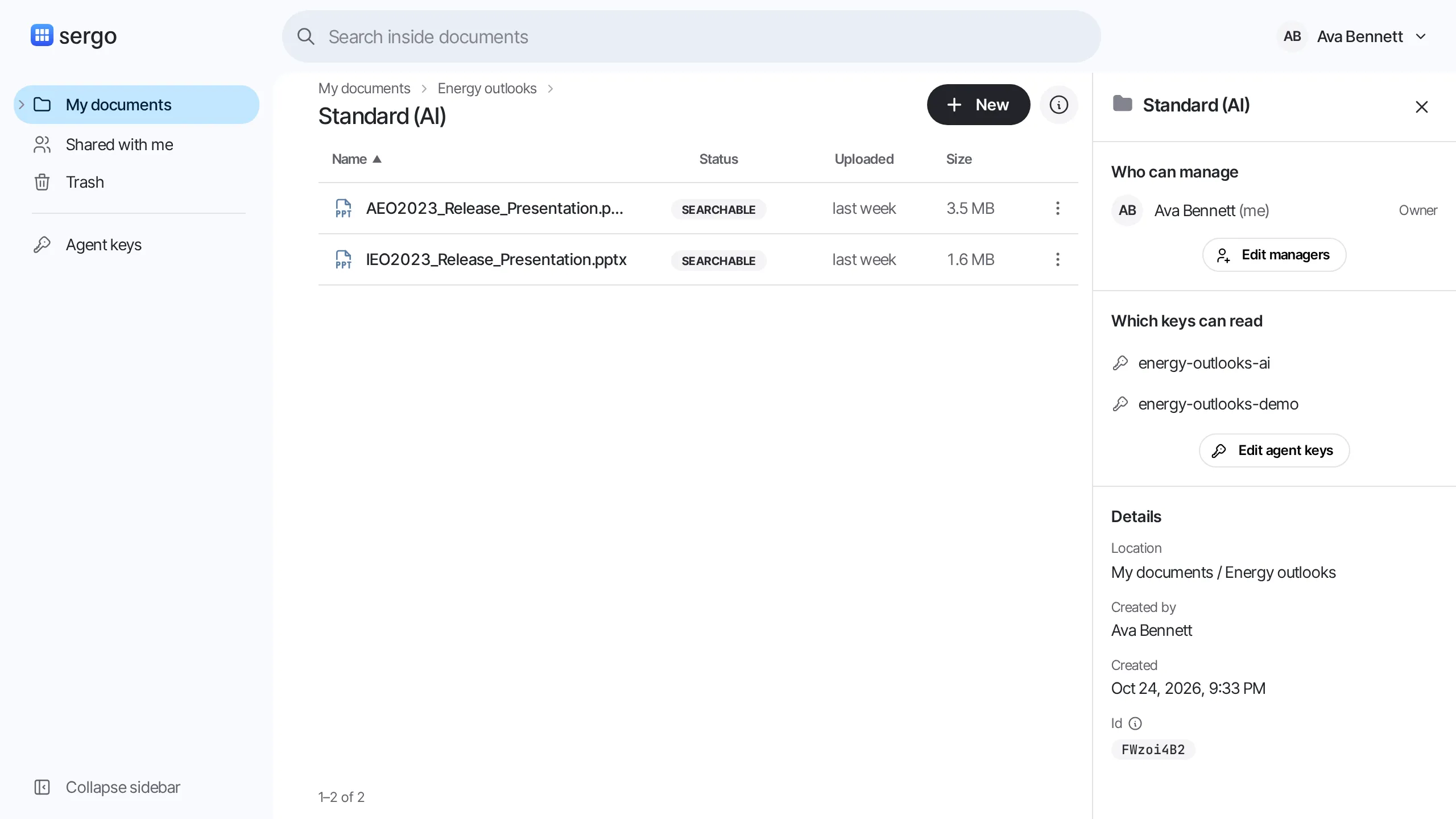
Folders and files share one list, folders first. Click a row to select it, and click its name or double-click it to open it. The ⓘ button shows the details pane: who can manage the item, which agent keys can read it, and who uploaded it.
Upload
Section titled “Upload”Use New › Upload, or drop files anywhere on the page. They go into the folder you are looking at, and the processing dialog opens right away, so you can pick a preset while the files upload. If you close the dialog, the files stay Not processed and out of search until you process them. See Processing.
Progress shows in a panel at the bottom right. A failed upload has a Retry button there.
If you upload many files at once and reach the install’s rate limit, the panel says “Waiting N s — too many uploads at once” and carries on by itself.
Two items in the same folder can’t have the same name. Case does not count, and items in Trash do not count.
- Names you type, for a new folder or a rename, are refused if they are taken.
- Names you don’t type, when you upload, move or restore, get a number instead:
Budget.pdfbecomesBudget (1).pdf. The upload panel shows the new name and says it was renamed.
Limits
Section titled “Limits”An admin sets two limits:
- File size. A file larger than this is not sent. The panel says “Over the N MB limit for one file.”
- Storage per person. Everything you uploaded counts, wherever it is, including files in Trash. Account › Storage shows how much you use. When it is full, move files to Trash and use Delete forever there to make room.
A fresh install allows 100 MB per file and 1 GB per person.
Drag files or folders onto a folder, or use Move to… from the ⋮ menu. A folder brings everything inside it.
What you move takes on the sharing of the folder it lands in. Before anything moves, Sergo shows who loses access and who gains access. If you move something out of another person’s space, it becomes yours, and the dialog warns you first. Items you shared directly keep that sharing wherever they go. See Sharing.
Rename
Section titled “Rename”Choose Rename from the ⋮ menu and type in the row. A file keeps its extension: if you leave it
out, Sergo adds it back, so Budget v2 becomes Budget v2.pdf. Search finds files by their name
too, and it picks up the new name without processing the file again.
Move to trash takes files and folders out of search right away. A folder takes everything inside it along.
Trash lists what was deleted, the folder it was in, who deleted it and when it will be purged.
- Restore puts an item back where it was, with its chunks, so it is searchable again. It is not processed again.
- Delete forever removes it now, together with its processed text. This can’t be undone.
Items are purged after 30 days unless an admin changed that.
Who can do what
Section titled “Who can do what”Managers of a folder can do all of the above to what is inside it. Two things are left to the managers of the folder above:
- If a file was shared with you on its own, you can open, download and process it, but you can’t move, rename or trash it.
- If a folder was shared with you, you can’t move or trash the folder itself, only what is inside it.