

Upload and share
Sharing
Share folders and files with teammates, and see who can manage them.
Everything you upload starts out visible only to you.
- Share a folder and the person sees it and everything inside it, including subfolders.
- Share a file and the person sees only that file. It appears under Shared with me.
People you share with become managers of that folder or file. Managers can upload, process and organize what they manage, share it further and remove other managers, but not the owner. They can also add it to their own agent keys. Someone who manages a single file, not its folder, can’t move, rename or trash it.
Choose Add manager… from the ⋮ menu, or select an item and click Edit managers in the details pane. Search for a person by name or username and pick them. They are added right away. Some workspaces only find someone from their whole username or email, so there you type it in full.
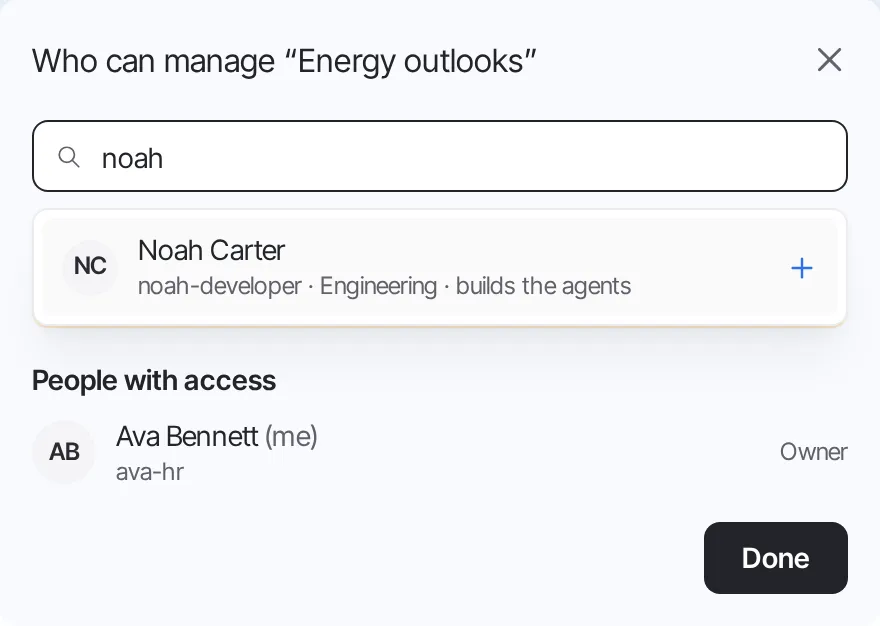
You can also select several items and add a manager to all of them at once. With several items selected, you can only add people, not remove them.
Items you have shared directly show a shared icon next to their name.
Who can manage
Section titled “Who can manage”The details pane and the dialog list everyone who can manage the item:
- Owner: the person whose My documents the item is in. The owner can’t be removed.
- People added to this item, who can be removed with ✕.
- Inherited: people who manage a folder above it. To remove them, go to that folder; the details pane links to it.
Removing someone asks first, and they lose access right away. To give it back, add them again.
To stop managing something that was shared with you, choose Leave… from its ⋮ menu, or click ✕ on your own row in the dialog. Leave is on files shared with you directly and on the top folder of a share. You lose access right away, unless someone adds you again.
Moving shared items
Section titled “Moving shared items”- A file or folder you shared directly keeps that sharing when you move it.
- A file moved out of a shared folder takes on the sharing of the folder it lands in. Before the move, the console shows who loses access and who gains it.
See Folders and files.
Agent keys
Section titled “Agent keys”The details pane of a folder or file shows Which keys can read it. For a file, each key says whether it reads the file through its folder or as a single file. Only the folder’s managers see this list.
When you stop sharing with someone, the folder or file is also removed from the agent keys that person manages. Sharing again does not add it back; they add it to their keys again themselves.
An agent key doesn’t know whose console it is looking at, so it does not see “My documents” or
“Shared with me”. It sees paths that start with the owner’s name, such as
Ava Bennett's documents/Handbook/Leave.pdf. If two people have the same name, a short id tells
them apart: Alex Kim (7KqN)'s documents. A key that can read a single shared file still sees the
folder path the file is in.